Start a session
Create a session in the app. Your device controls the shared number.
Show the same number across connected Android devices. One device controls the number; your displays update in real time.
SendNumber is now also available in your browser.
For Android · A simple way to stay together.
Try the idea: use + and − to update both example displays. Local demo, not a live session.
01 / How it works
Connect your devices and share a number in three simple steps.
Create a session in the app. Your device controls the shared number.
Share the QR code or 6-digit session ID. The other devices join your session.
Change the number with + and −. Every connected display updates to the new number in real time.
02 / Make it yours
Make the number easy to see at events, service points and group activities.
Pick a preset and explore the text size.
80–500 px · Preview shown at a reduced scale
Add an optional password when you want to protect access to your session.
Pause and resume the session without disconnecting your devices.
Quickly rejoin recent sessions and switch between controller and display roles when needed.
SENDNUMBER / APP VIEWS
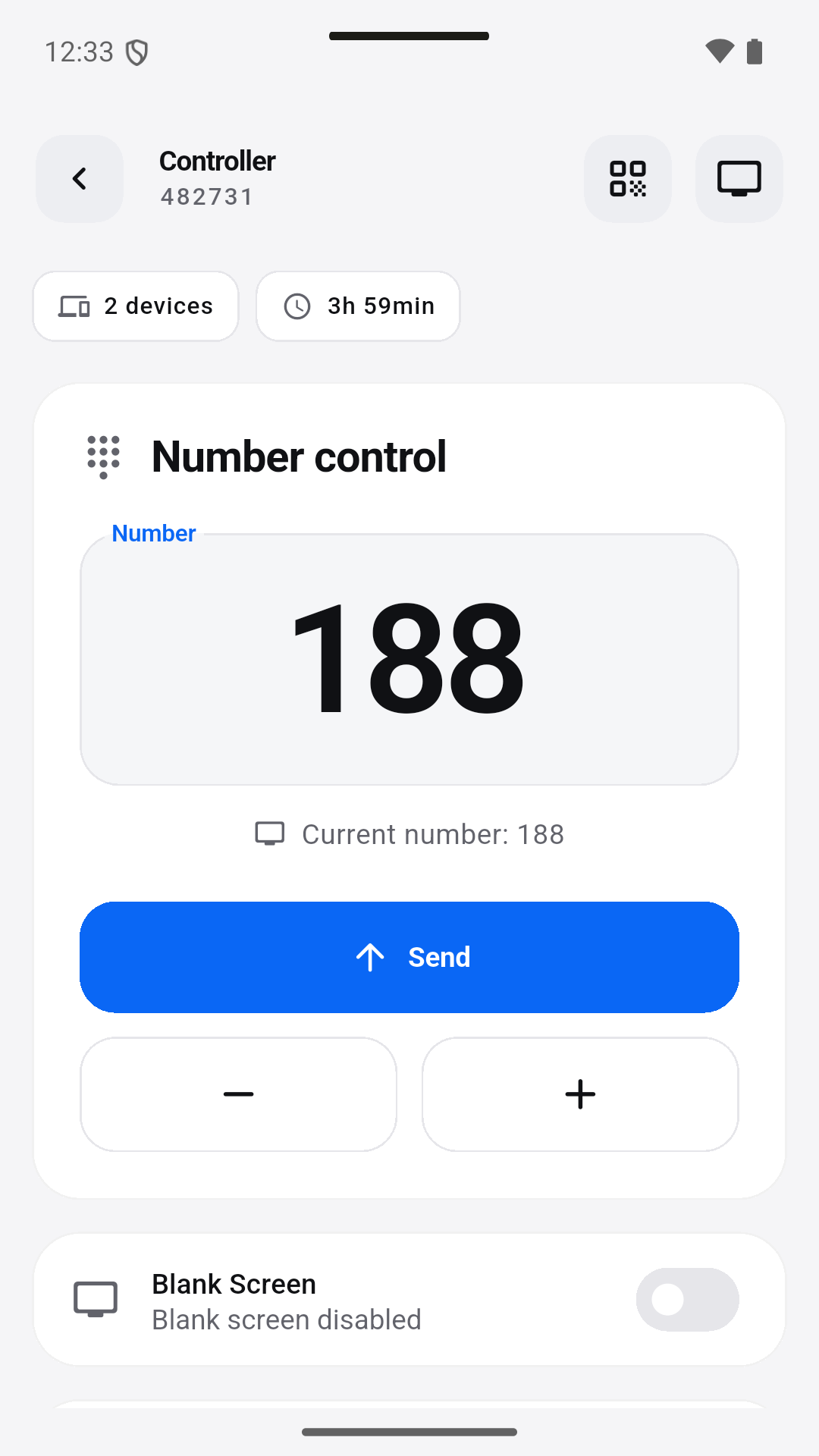
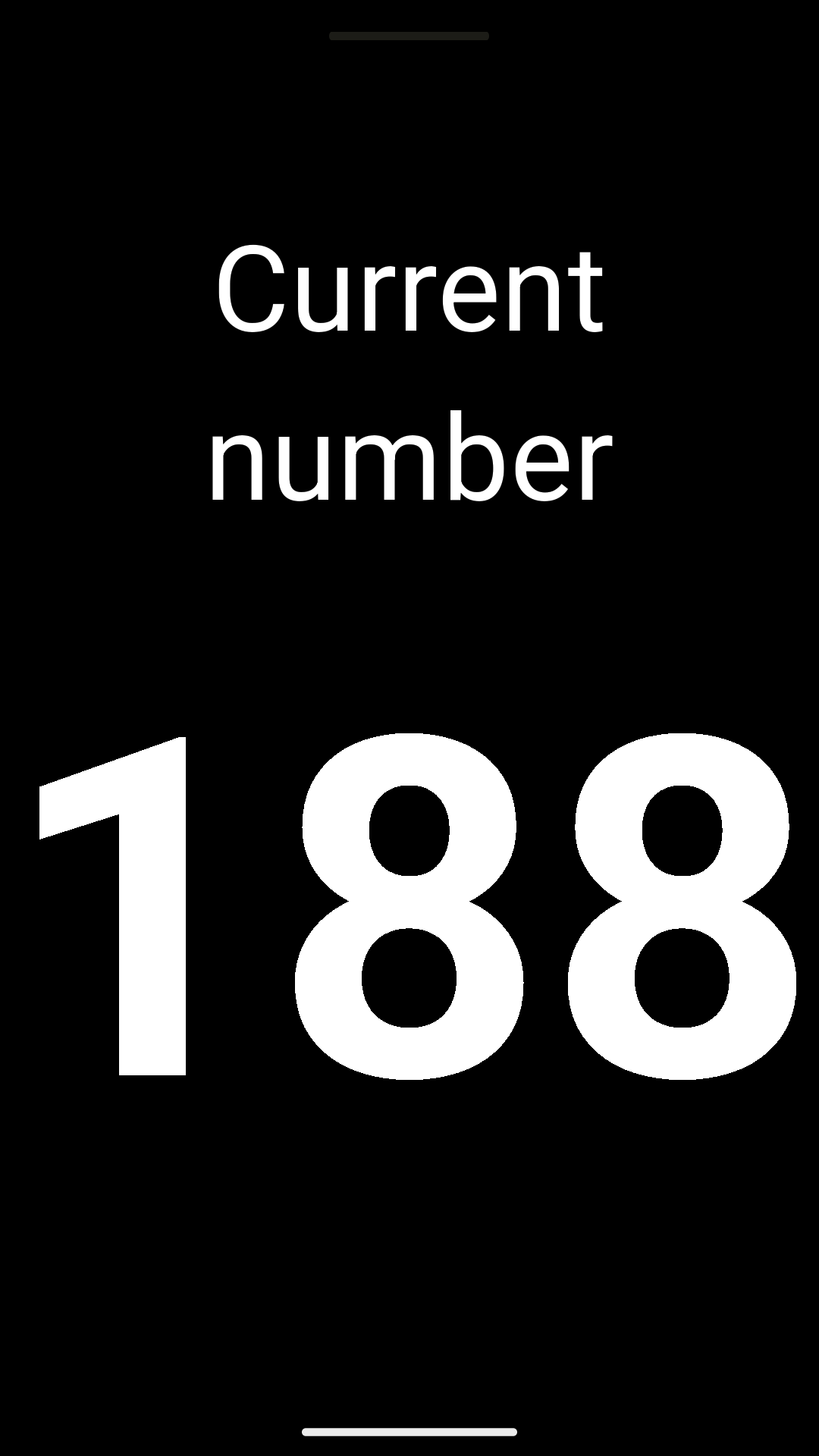
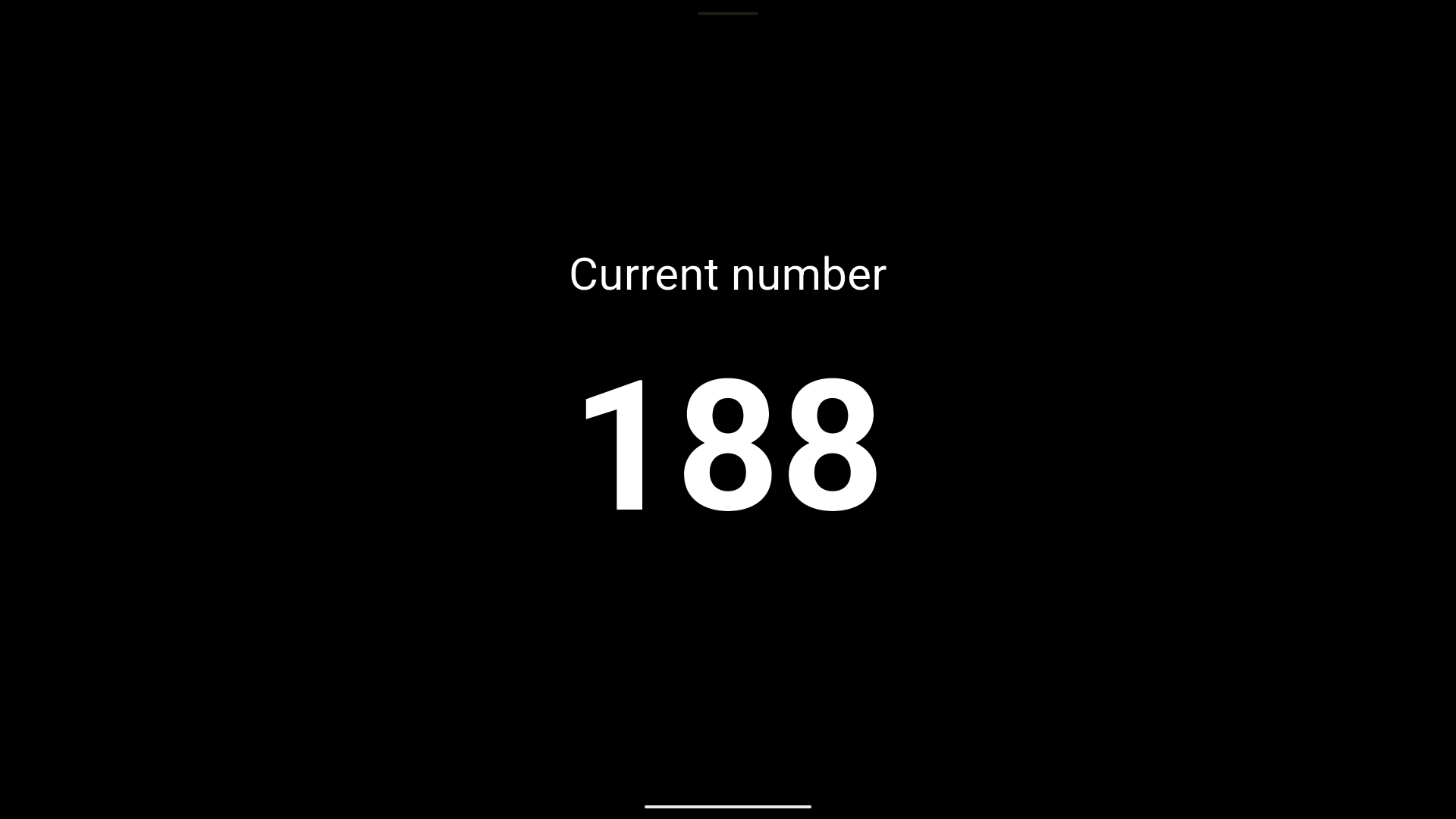
Explore the controller and two display views in these supplied app captures.
Real Android screenshots of the multilingual test version, using a local demo session. The current Google Play version may differ.
A PRACTICAL SETUP
Choose what the number means for your activity. Assign one operator and check every display.
Explain the numbering system and when the value changes. Use a clear title if needed.
Create a session on the device that will lead. Participants join in the app using the QR code or 6-digit session ID. Add an optional joining password if needed, then check the connection with a test number change.
Adjust the in-app text size from 80 to 500 px. Choose text and background colours or try the four display presets. Check the display from the actual viewing distance rather than judging it only close up.
Use + and − to update the number. Pause and resume the session; use optional sounds to signal changes.
03 / Better together
Show a shared exercise or activity number.
Show the same number on several displays.
Display the number selected by your staff.
Give visitors a clear visible number cue.
04 / Good to know
No. An operator selects the number. SendNumber displays it on connected devices.
Yes. Explain its meaning to your group or visitors and choose a useful title.
One device controls the number; connected displays show it in real time.
They scan the session’s QR code or enter its 6-digit session ID in the app. If you set an optional password, they will need it to join.
Set the text size from 80 to 500 px and choose custom text and background colours. Pick Classic, Minimal, Card or Fullscreen styles, or use the Chalkboard, Whiteboard, Night Mode and High Contrast presets.
Yes. You can enable optional sound alerts for number changes in the app.
No. This demo illustrates the idea locally in your browser. Use the SendNumber app for sessions with connected devices. The display is a simplified illustration, not an app screenshot.
Create a session. Share the code. Lead the way.